Getting Started
Install TINAA MSP, access the dashboard, and run your first quality check in under 10 minutes.
Getting Started
This guide walks you from zero to a running TINAA MSP instance with your first product registered and a quality score on the board.
Prerequisites
Before you install TINAA MSP, confirm the following are available in your environment.
| Requirement | Minimum version | Notes |
|---|---|---|
| Python | 3.11 | Required for manual install |
| Docker | 24.0 | Required for Docker Compose install |
| Docker Compose | 2.20 | Ships with Docker Desktop |
| PostgreSQL | 15 (TimescaleDB 2.x) | Managed automatically in Docker Compose |
| Redis | 7.0 | Managed automatically in Docker Compose |
| Git | 2.x | Needed for GitHub integration |
For Kubernetes deployments an existing cluster (1.27+) with kubectl configured is required.
Installation Options
Three installation paths are supported. Docker Compose is recommended for all new users and small-to-medium teams.
| Method | Best for | Time to running |
|---|---|---|
| Docker Compose | Teams, evaluation, production | ~3 minutes |
| Manual (pip) | Development, contributing | ~10 minutes |
| Kubernetes | Large-scale, HA production | ~20 minutes |
Option 1: Docker Compose (Recommended)
Quick Start
1
2
3
4
5
6
7
8
9
10
11
12
13
14
15
16
17
18
# Download the compose file
curl -O https://raw.githubusercontent.com/aj-geddes/tinaa-playwright-msp/main/docker-compose.yml

# Create your environment file
cat > .env <<EOF
GITHUB_APP_ID=
GITHUB_PRIVATE_KEY=
GITHUB_WEBHOOK_SECRET=
TINAA_API_KEY=change-me-before-production
TINAA_MODE=api
EOF

# Start all services
docker compose up -d

# Verify everything is healthy
docker compose ps
curl http://localhost:8765/health
Full docker-compose.yml
This is the complete production-grade compose file shipped with the repository.
1
2
3
4
5
6
7
8
9
10
11
12
13
14
15
16
17
18
19
20
21
22
23
24
25
26
27
28
29
30
31
32
33
34
35
36
37
38
39
40
41
42
43
44
45
46
47
48
49
50
51
52
53
54
55
56
57
58
59
60
61
62
services:
  tinaa:
    build:
      context: .
      target: production
    image: tinaa-msp:latest
    ports:
      - "8765:8765"
    environment:
      - DATABASE_URL=postgresql+asyncpg://tinaa:tinaa@postgres:5432/tinaa
      - REDIS_URL=redis://redis:6379/0
      - GITHUB_APP_ID=${GITHUB_APP_ID}
      - GITHUB_PRIVATE_KEY=${GITHUB_PRIVATE_KEY}
      - GITHUB_WEBHOOK_SECRET=${GITHUB_WEBHOOK_SECRET}
      - TINAA_API_KEY=${TINAA_API_KEY}
      - TINAA_MODE=${TINAA_MODE:-api}
    depends_on:
      postgres:
        condition: service_healthy
      redis:
        condition: service_healthy
    healthcheck:
      test: ["CMD", "curl", "-f", "http://localhost:8765/health"]
      interval: 30s
      timeout: 10s
      start_period: 20s
      retries: 3
    restart: unless-stopped

  postgres:
    image: timescale/timescaledb:latest-pg16
    environment:
      POSTGRES_USER: tinaa
      POSTGRES_PASSWORD: tinaa
      POSTGRES_DB: tinaa
    ports:
      - "5432:5432"
    volumes:
      - postgres_data:/var/lib/postgresql/data
    healthcheck:
      test: ["CMD-SHELL", "pg_isready -U tinaa"]
      interval: 5s
      timeout: 5s
      retries: 5
    restart: unless-stopped

  redis:
    image: redis:7-alpine
    ports:
      - "6379:6379"
    volumes:
      - redis_data:/data
    healthcheck:
      test: ["CMD", "redis-cli", "ping"]
      interval: 5s
      timeout: 5s
      retries: 5
    restart: unless-stopped

volumes:
  postgres_data:
  redis_data:
To update TINAA to the latest release:
1
2
docker compose pull
docker compose up -d
Option 2: Manual Install
Use this path when you need to run TINAA from source or contribute to the project.
Step 1: Clone and Install
1
2
3
4
5
6
7
8
9
10
11
12
13
git clone https://github.com/aj-geddes/tinaa-playwright-msp.git
cd tinaa-playwright-msp

# Create and activate a virtual environment
python -m venv .venv
source .venv/bin/activate       # Linux / macOS
# .venv\Scripts\activate        # Windows

# Install the package with all dependencies
pip install -e ".[all]"

# Install Playwright browser binaries
playwright install chromium
Step 2: Set Up External Services
TINAA requires PostgreSQL (with TimescaleDB extension) and Redis. The fastest way to get these locally is via Docker:
1
2
3
4
5
6
docker run -d --name tinaa-pg \
  -e POSTGRES_USER=tinaa -e POSTGRES_PASSWORD=tinaa -e POSTGRES_DB=tinaa \
  -p 5432:5432 timescale/timescaledb:latest-pg16

docker run -d --name tinaa-redis \
  -p 6379:6379 redis:7-alpine
Step 3: Configure Environment Variables
1
2
3
4
export DATABASE_URL="postgresql+asyncpg://tinaa:tinaa@localhost:5432/tinaa"
export REDIS_URL="redis://localhost:6379/0"
export TINAA_API_KEY="dev-key-change-in-production"
export TINAA_MODE="api"
Alternatively, copy .env.example to .env and populate the values.
Step 4: Run Database Migrations
1
alembic upgrade head
Step 5: Start the Server
1
uvicorn tinaa.api.app:app --host 0.0.0.0 --port 8765 --reload
The --reload flag enables hot reloading for development. Remove it in production.
Option 3: Kubernetes
For production Kubernetes deployments, Helm charts and raw manifests are in the k8s/ directory. See the Deployment Guide for complete Kubernetes setup instructions, including Secrets management, Ingress configuration, and horizontal scaling.
Accessing the Dashboard
Once TINAA is running, open your browser and navigate to:
1
http://localhost:8765
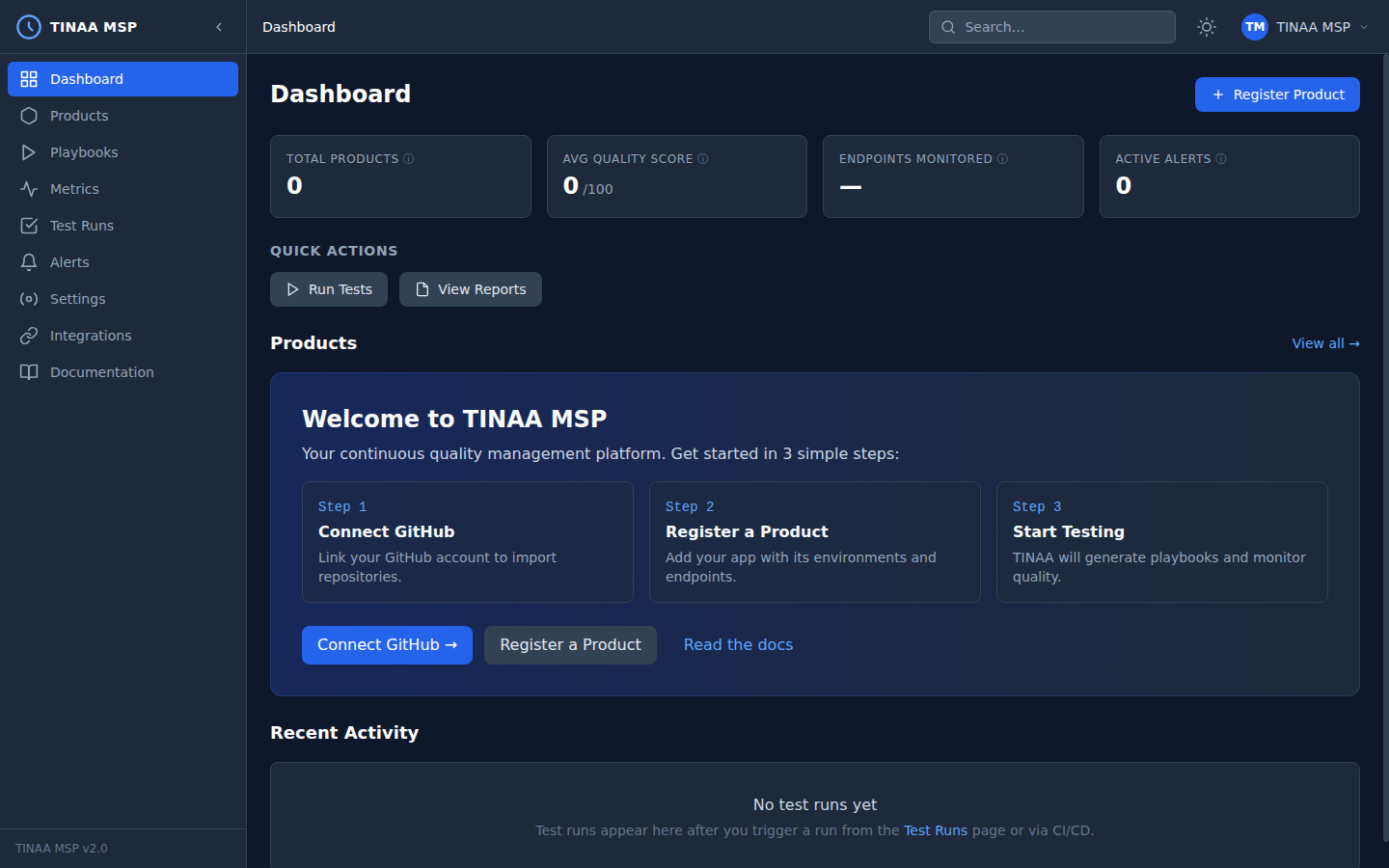
You will land on the main dashboard, which shows:
- An overview of all registered products and their quality scores
- Recent test runs with pass/fail status
- Active alerts
- System health indicators
First Steps After Install
1. Connect GitHub (Recommended)
GitHub integration unlocks automatic test runs on pull requests, deployment tracking, and preview URL discovery.
Navigate to Settings > Integrations > GitHub and choose your connection method:
- Personal Access Token — simplest, suitable for individuals and small teams
- GitHub App — recommended for organisations, enables finer-grained permissions
See the GitHub Integration guide for the full setup walkthrough.
2. Register Your First Product
A “product” in TINAA represents one application (a web app, API, or marketing site). Register your first product from the dashboard:
- Click Products in the left navigation
- Click Register Product
- Fill in the product name, repository URL, and at least one environment URL
- Click Save
TINAA immediately begins synthetic monitoring on the URLs you provide.
You can also register via the API:
1
2
3
4
5
6
7
8
9
10
11
12
curl -X POST http://localhost:8765/api/v1/products \
  -H "Content-Type: application/json" \
  -H "X-API-Key: $TINAA_API_KEY" \
  -d '{
    "name": "My Web App",
    "repository_url": "https://github.com/myorg/my-web-app",
    "description": "Customer-facing storefront",
    "environments": {
      "production": "https://www.myapp.com",
      "staging": "https://staging.myapp.com"
    }
  }'
3. Run Your First Quality Check
After registering a product, TINAA automatically generates a baseline quality score by:
- Running a smoke test against the URLs you provided
- Auditing Web Vitals and response times
- Scanning for missing security headers
- Checking basic WCAG accessibility compliance
The score typically appears within 2 minutes of registration. Navigate to Products > [your product] to see the full breakdown.
Verifying the Install
1
2
3
4
5
6
7
8
# Health check
curl http://localhost:8765/health
# {"status":"healthy","version":"2.0.0","database":"connected","redis":"connected"}

# List products (should return empty array on fresh install)
curl http://localhost:8765/api/v1/products \
  -H "X-API-Key: $TINAA_API_KEY"
# {"products":[],"total":0}
Next Steps
- Products and Environments — register and configure your applications
- Test Playbooks — write and run declarative test suites
- Quality Scores — understand how the composite score is computed
- GitHub Integration — connect pull requests to automated quality gates
- Claude Code and MCP — control TINAA from Claude